Changelog

Follow the journey of building Supermac — local-first, private, and fast.

Menu bar agenda

Supermac's menu bar calendar now shows a real upcoming agenda, not just a plain day list.

  • Past events are hidden so the popover focuses on what is still ahead.
  • Today is grouped into All Day, Morning, Afternoon, and Evening sections with live counts.
  • Upcoming events from the next few days appear under today's schedule, with more future events shown once today is clear.
  • Rows now show richer event context, including calendar names, locations when available, colored section accents, and a Now state for active events.
  • EventKit can fetch upcoming events across the next month for the menu bar agenda.
Integration settings

External integrations now have focused native settings panes instead of one overloaded settings blob.

  • GitHub, Linear, Spotify, and Benji settings now live in their own integration sections.
  • Spotify, Benji, GitHub, Linear, and Home Assistant use real bundled brand icons in the settings sidebar and headers.
  • Credential previews make it easier to see whether a token or API key is configured without exposing the whole secret.
  • GitHub and Linear base URLs can be adjusted for custom or self-hosted setups.
  • The settings sidebar metadata was split out so settings sections stay easier to scan and search.

Media downloader

Supermac now includes a native media downloader for grabbing video or audio from supported URLs.

  • Download Video and Download Audio commands can start from a pasted URL or from a detected URL in the launcher query.
  • A bundled yt-dlp executable powers the downloader, so the feature works without a separate manual install.
  • The Downloader screen shows running and completed jobs, output paths, logs, and status.
  • Finished downloads can be opened, revealed in Finder, and searched from the download history.
  • The Chrome companion can hand off page URLs into the native downloader flow.

Android companion

Supermac can now pair with an Android companion app and expose phone controls from the launcher.

  • The Companion settings panel shows paired Android nodes, live status, and a QR setup flow.
  • Launcher commands can toggle Do Not Disturb, open Android settings, buzz the phone, ring it, stop ringing, and send a notification.
  • Installed Android apps can appear as launcher commands so they can be opened from the Mac.
  • A phone widget shows connection state, model, Android version, battery level, charging state, and low-power status.
  • The Android app reports notifications, system state, apps, and battery status back to Supermac.

Tasks

Supermac tasks are now first-class launcher items with priority, flags, actions, and a Today widget.

  • Local tasks support title, description, planned date, work/personal area, priority, flagged state, done state, and archive state.
  • The Tasks settings panel can create, edit, complete, archive, and delete tasks.
  • Active tasks now appear in root launcher search with actions for mark done, flag, archive, and delete.
  • Added root commands for opening Tasks, creating a new task, and jumping to today's planned tasks.
  • Added a Today Tasks launcher widget with inline completion and privacy-mode title blurring.
  • Tasks are sorted by flag, priority, planned date, and recency so important items float up.

Keyboard sounds

Supermac now ships sampled keyboard soundpacks for people who want the Mac to feel more alive.

  • Keyboard Sounds can be enabled from Settings with input-monitoring permission guidance.
  • Multiple bundled soundpacks provide sampled key-down sounds, and supported packs can play release sounds too.
  • Volume, release sounds, and typing-only behavior can be adjusted from the settings pane.
  • A preview button lets you test the selected soundpack immediately.
  • Samples are converted into the active playback format before scheduling, avoiding audio graph crashes across mixed soundpacks.

Apple Notes search

Supermac can now index Apple Notes and open or preview them from the launcher.

  • Apple Notes are read from a safe temporary snapshot of the local Notes database.
  • Note results include titles, snippets, folder paths, and Notes app icons.
  • Notes can be opened directly in Apple Notes or previewed inside the Supermac stack.
  • Privacy Mode hides sensitive note paths while recording or presenting.

Screen usage and breaks

Supermac now tracks app and website usage and can turn that data into focused break prompts.

  • App Usage shows daily totals, top apps, top websites, records, and history charts.
  • Browser companion data can enrich usage with active website URLs instead of only window titles.
  • Usage widgets can show today's screen time, top app, top website, and mixed usage in the launcher.
  • Screen Breaks can be configured with interval, duration, natural-break reset, enforcement level, and break content.
  • Break screens can show quotes, widgets, a website, an image, or a minimal pause screen.

Privacy mode

Supermac now has a privacy mode for hiding sensitive launcher text while recording or presenting.

  • Sensitive titles for calendar events, reminders, contacts, and Apple Notes can be blurred in the launcher.
  • Contact email and phone visibility can be controlled separately.
  • Privacy widgets and launcher actions make the mode easy to toggle without digging through settings.

AI chat

Supermac now has a native AI chat surface with agents, saved conversations, and workspace context.

  • The AI chat screen has a searchable conversation sidebar and a focused detail view.
  • Agents can be selected per conversation, including Codex-style local agent workflows.
  • Messages support inline skill mentions so local Supermac skills can be referenced from the composer.
  • Conversation history, workspace paths, and agent settings stay inside the native app surface.

Launchpad

Supermac now has its own native Launchpad-style app grid for browsing, searching, and organizing installed apps.

  • Launchpad opens as a separate full-screen native window from the root command surface.
  • Apps can be searched, opened, pinned, hidden, and sent into the uninstall flow.
  • Sorting and grouping support name, newest, location, and developer-style organization.
  • App records are prepared off the main thread and icons load asynchronously so browsing stays smooth.

Window modes

Supermac now has configurable launcher modes, including a compact type-first window.

  • Widgets + Search keeps the full dashboard-style launcher.
  • Only Search removes the widget layer for a cleaner command surface.
  • Compact opens as a minimal search bar and expands with results after typing.
  • The settings UI shows visual cards for choosing the mode.

Browser extension commands

Supermac can now talk to a Chrome companion extension and run browser tab/window commands from the launcher.

  • Copy open tabs, copy the active tab URL, create tabs, close tabs, reload tabs, duplicate tabs, and pin or mute the active tab.
  • Create, close, minimize, and maximize browser windows through launcher commands.
  • Commands appear when the native browser bridge is connected.
  • The companion extension forwards tab and window lifecycle events back to Supermac.

Native alarms and timers

Supermac now has local alarms and timers built into Settings, with native controls and a proper ringing panel.

  • Alarms support labels, weekday repeats, and enable/disable controls.
  • Timers support labels, editable durations, and start/stop controls.
  • The alarm ringing panel includes stop plus 3, 5, 9, and 15 minute snooze actions.
  • Alarm settings keep the UI minimal, with orange accents only for active switches and selected days.

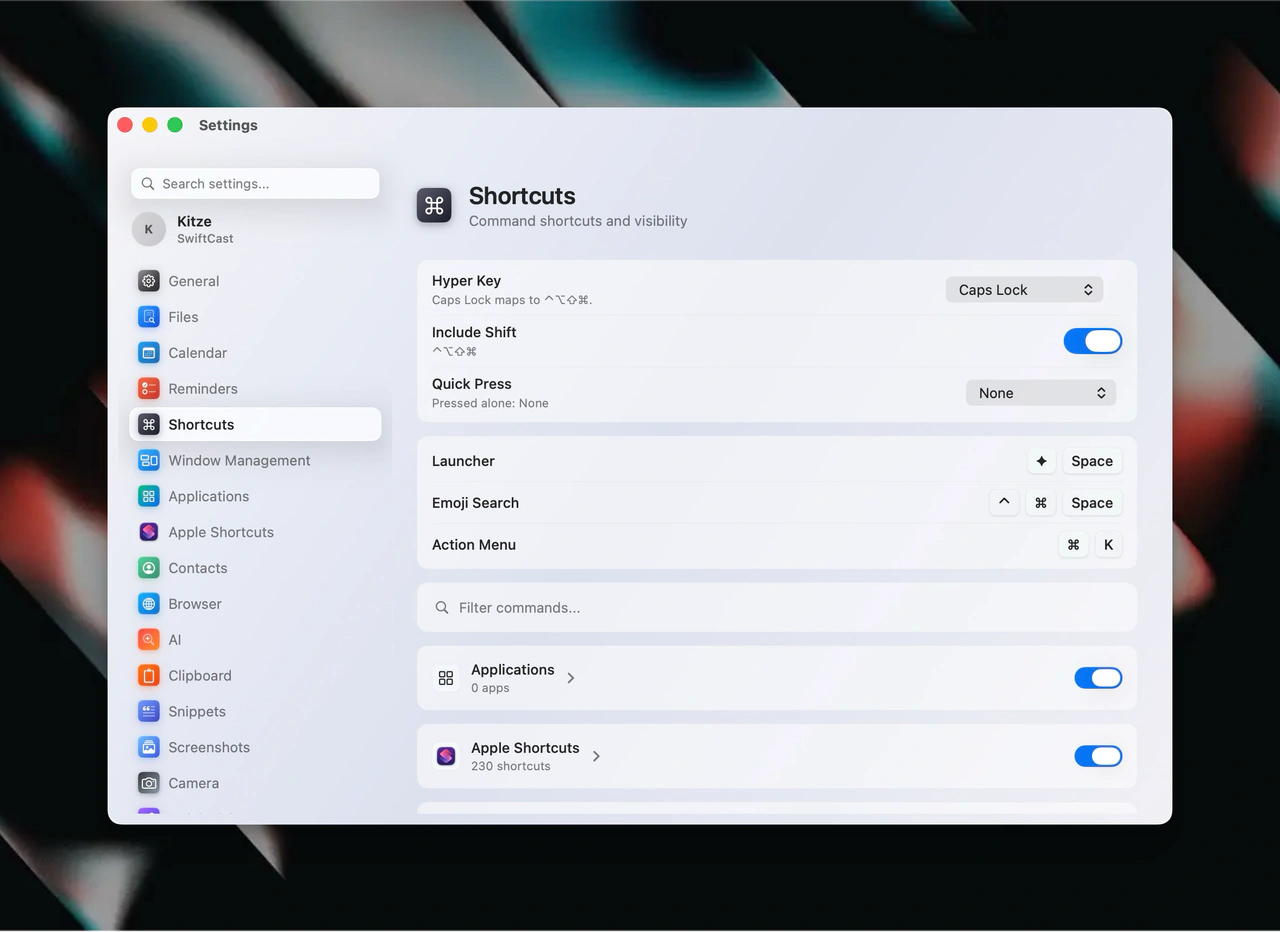
Hyper key support

Supermac now lets you turn Caps Lock or another physical key into a Hyper key for cleaner launcher shortcuts.

Supermac Shortcuts settings showing Hyper Key configuration.
  • Caps Lock, modifier keys, and function keys can be mapped to a Hyper key.
  • Hyper can emit Control, Option, Command, and optionally Shift.
  • Hyper-Space can open the launcher without stealing your old shortcut muscle memory.
  • Quick Press can be configured for supported physical keys.
  • The Shortcuts settings page now shows Hyper-aware command badges.

Activity monitor

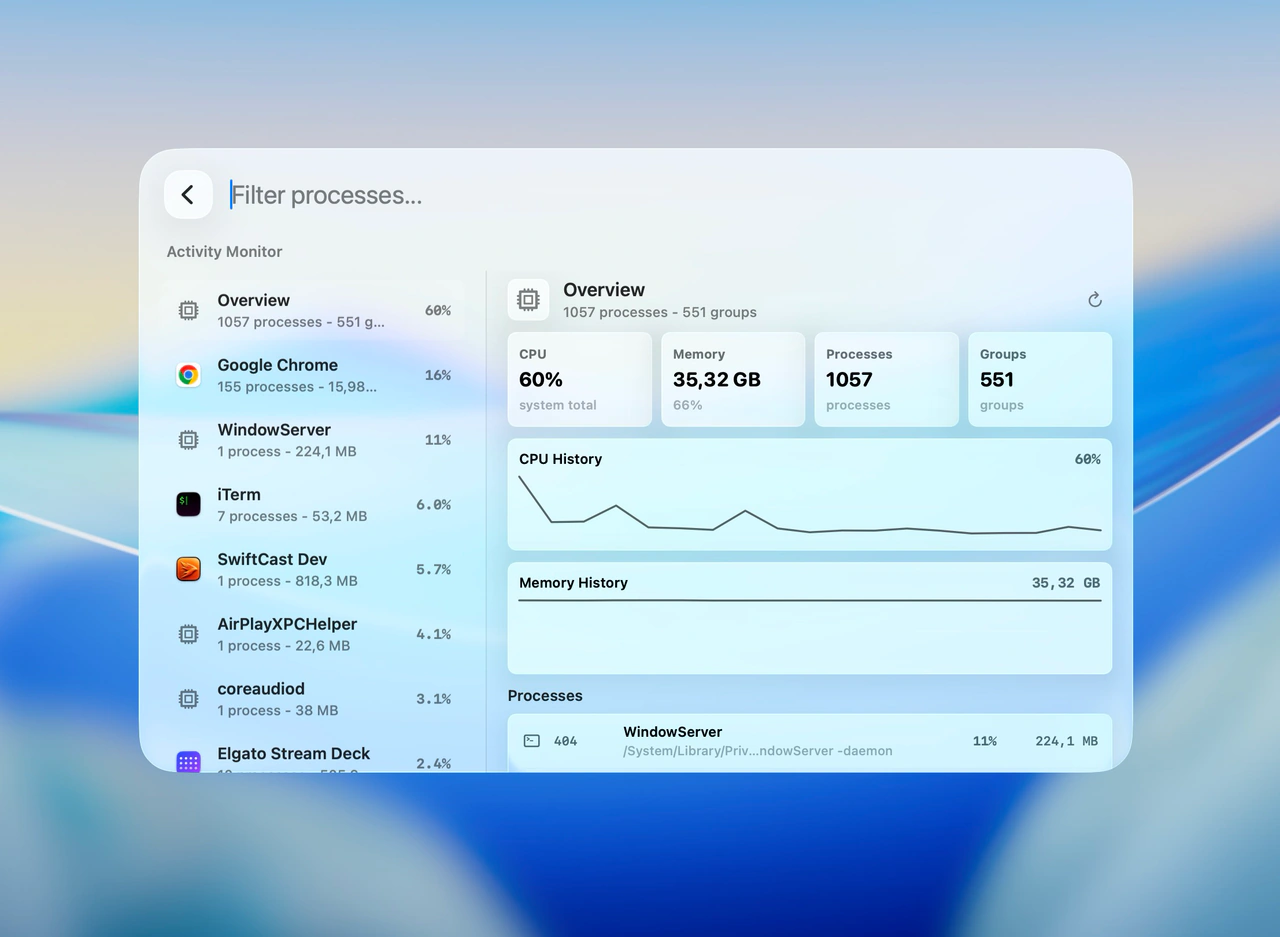
Supermac now has a native Activity Monitor view for checking what is eating CPU and memory without opening Apple Activity Monitor.

Supermac Activity Monitor showing process groups, CPU usage, memory, and history charts.
  • Filter processes directly from the launcher stack.
  • Processes are grouped by app so Chrome-style process piles are easier to read.
  • The overview shows total CPU, memory, process count, and group count at a glance.
  • CPU and memory history charts make spikes easier to spot.
  • Process rows show CPU, memory, process identifiers, and app icons in the native Supermac surface.

File shelf

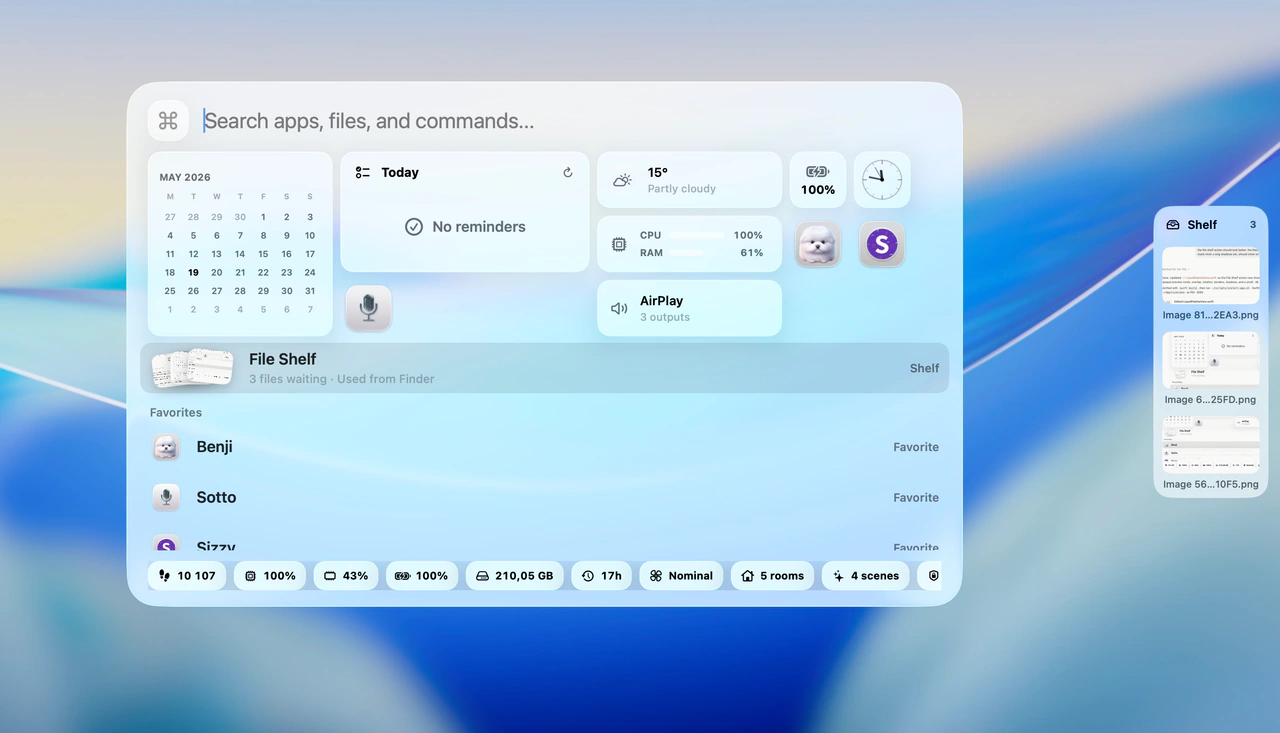
Supermac now gives dragged files a temporary shelf, with a launcher row and a floating drop target while you work.

Supermac showing File Shelf in the launcher with a floating shelf panel on the right.
  • Drag files or images into the shelf and keep them waiting without losing your current flow.
  • The launcher shows File Shelf with a live file count and thumbnail stack.
  • Enter File Shelf to search shelved files, open them, reveal them in Finder, copy them, or remove them.
  • Shelf actions can copy all files, copy paths, zip everything to the Desktop, or clear the shelf.
  • Items can be previewed with Quick Look, dragged back out, or locked so they stay after dragging.

Widgets and bottom status bar

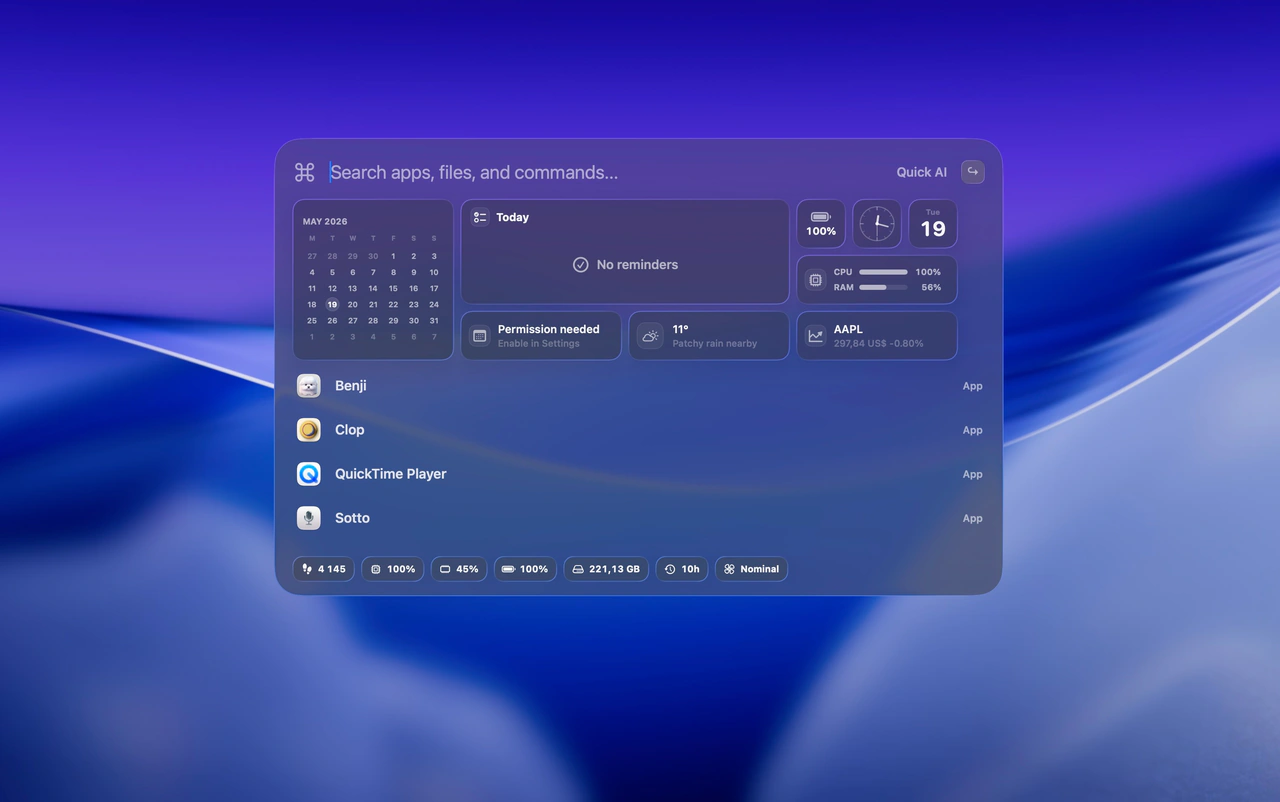
Supermac now brings glanceable widgets and a persistent bottom status bar into the main launcher view.

Supermac launcher showing widgets above app results and a bottom status bar.
  • Calendar, Today, battery, clock, CPU, RAM, weather, stocks, and permission widgets can appear above launcher results.
  • The bottom status bar keeps useful system signals visible while you search.
  • Status chips show steps, CPU, memory, battery, storage, recency, and keyboard state at a glance.
  • Widget content stays inside the native launcher instead of sending you into separate panels.
  • Root search results continue below the widgets, so launching apps and commands stays one motion away.

Interactive widgets

Supermac widgets now react directly inside the launcher, so glanceable status can turn into immediate action.

  • Today reminders can be completed inline from the widget.
  • The reminders widget updates to an empty state immediately after items are checked off.
  • Calendar, weather, stocks, battery, CPU, RAM, audio, Home, lights, climate, and security widgets sit above launcher results.
  • Widget chips in the footer keep system and home status visible while searching.
  • Interactive widget state lives inside the native launcher surface without leaving Supermac.

Window management

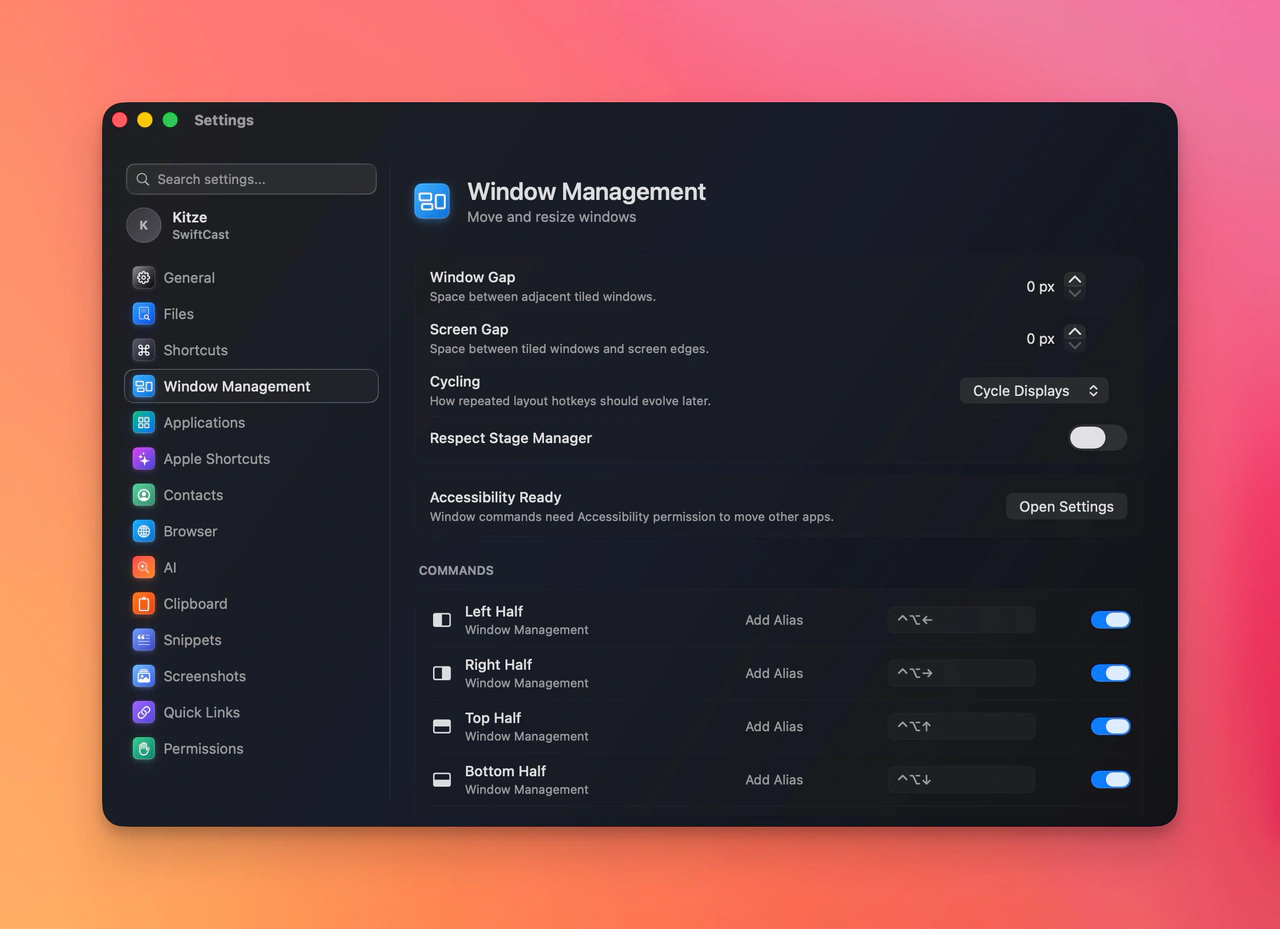
Supermac now includes native window management commands with configurable gaps, cycling behavior, and Stage Manager awareness.

Supermac settings showing Window Management options and layout commands.
  • Added built-in commands for left half, right half, top half, bottom half, and more window layouts.
  • Window Gap and Screen Gap settings control spacing between tiled windows and screen edges.
  • Cycling behavior can be set so repeated layout hotkeys move across displays or layout states.
  • Respect Stage Manager keeps window commands from fighting macOS Stage Manager.
  • Accessibility readiness is surfaced directly in settings with a shortcut to open permissions.

Calculator

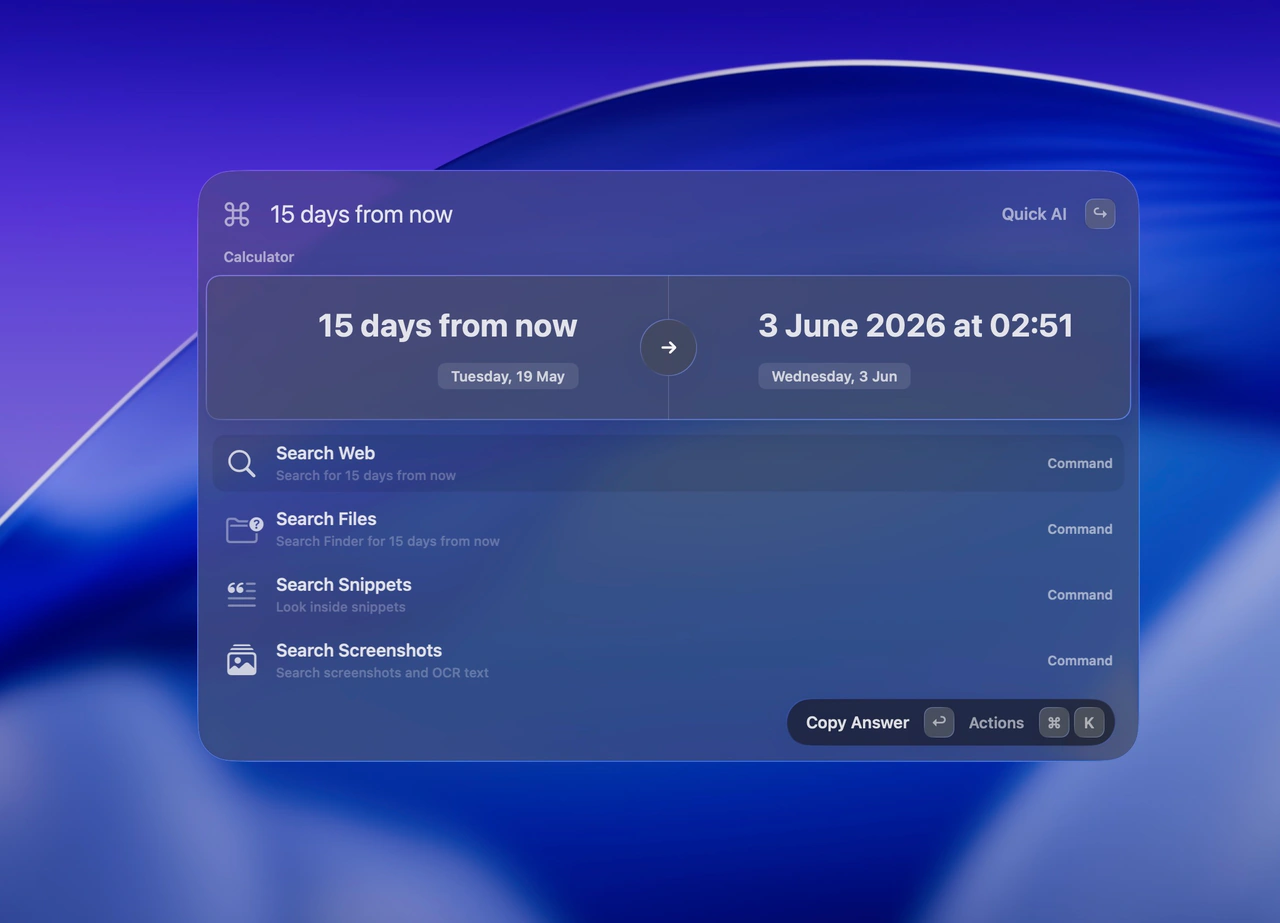
Supermac now understands calculator-style queries directly in the launcher, including natural-language date math.

Supermac Calculator resolving 15 days from now to 3 June 2026 at 02:51.
  • Natural-language date math works directly from launcher search.
  • Calculator answers appear inline above fallback commands.
  • Results can be copied with Copy Answer.
  • Search fallbacks stay available underneath when a query can also be used elsewhere.

Translator

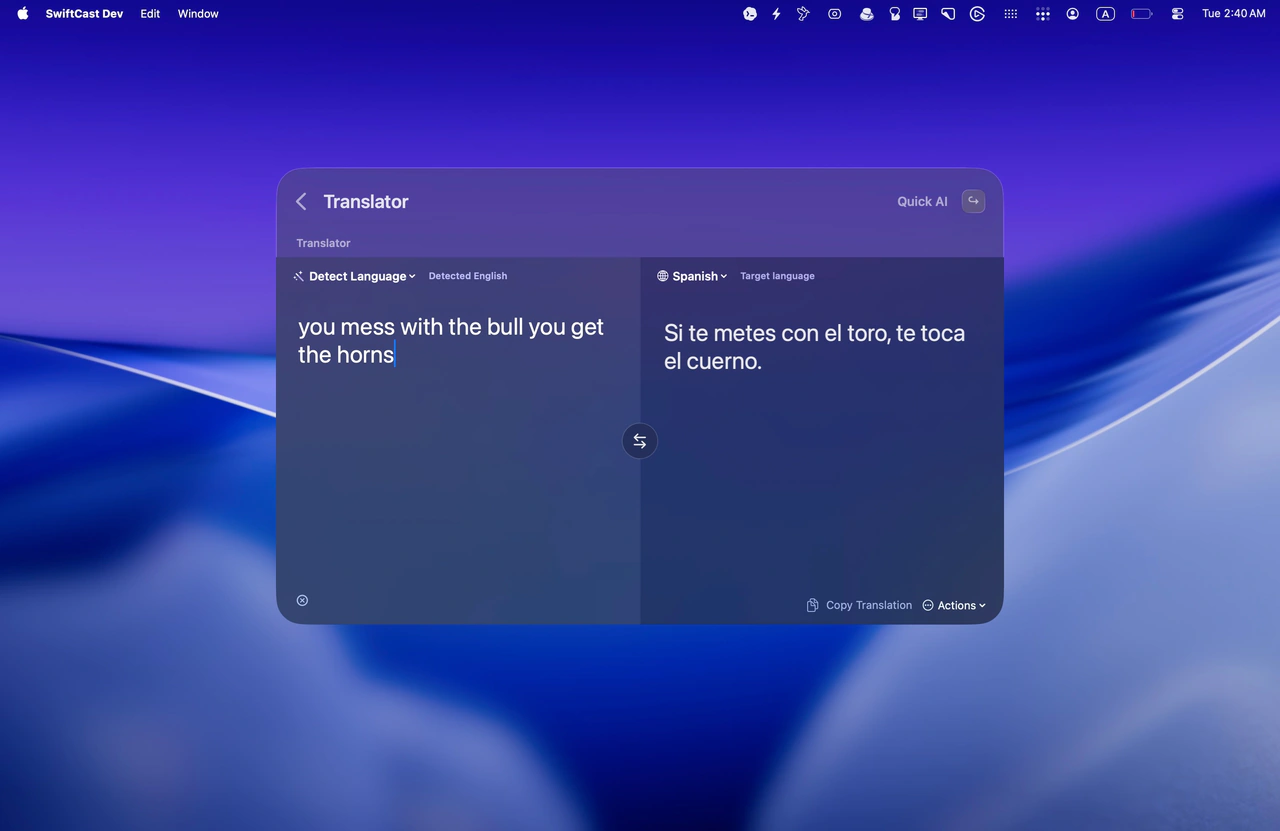
Supermac now has a native two-pane translator with language detection, target language selection, and copy actions.

Supermac Translator translating English text into Spanish.
  • Detect Language can identify the source language from typed text.
  • Target language selection supports fast translation into the language you need.
  • The split-pane layout keeps source text and translated output visible together.
  • Copy Translation and Actions are available directly from the translator surface.
  • Quick AI stays available from the translator screen.

Third-party extensions

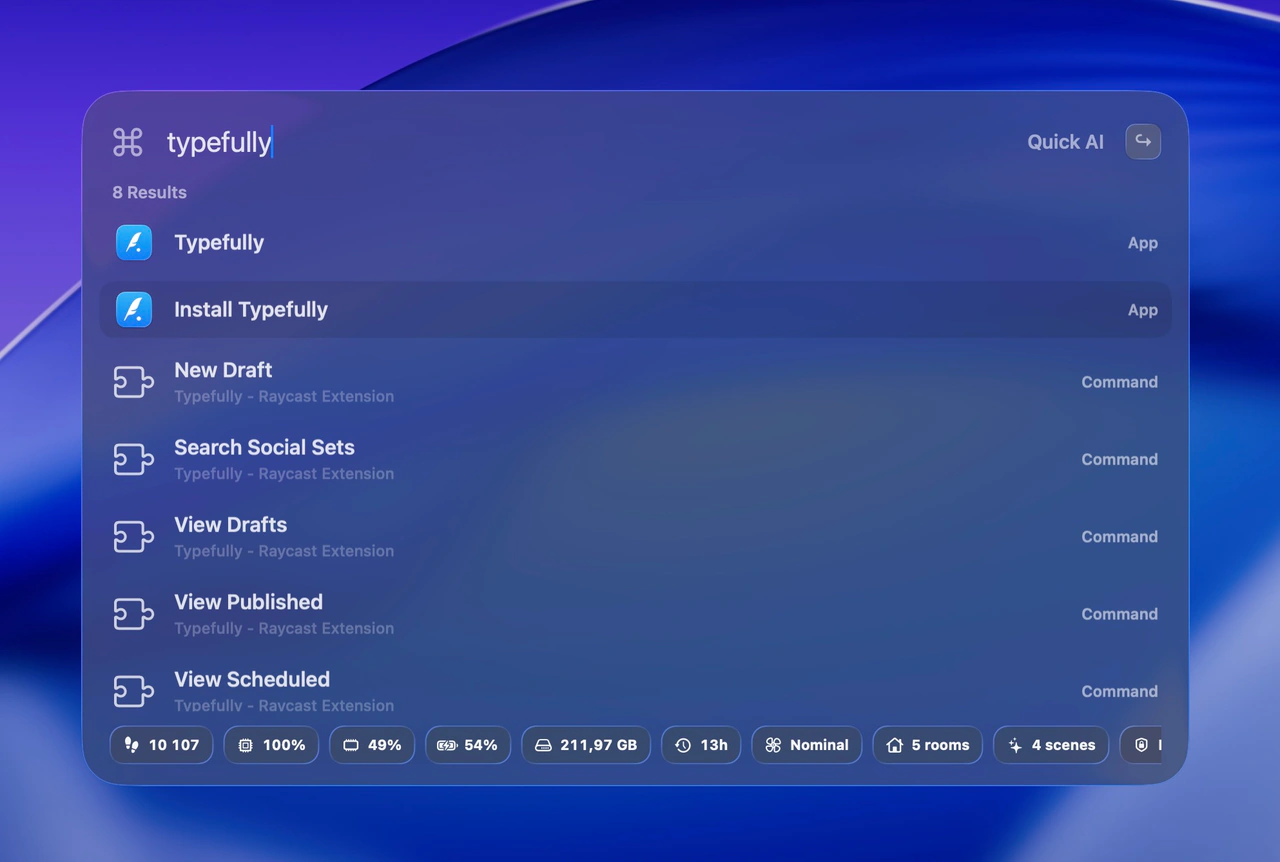
Supermac can now discover and run third-party extension commands from the launcher.

Supermac showing third-party extension commands in search results.
  • Third-party extension commands now show up directly in root search.
  • Extension results keep their source visible so imported commands are easy to recognize.
  • Installed extension apps can appear alongside their commands for quick setup and launch.
  • The command surface stays native while still supporting third-party extension workflows.

Emoji picker - pinned, learned, AI-assisted

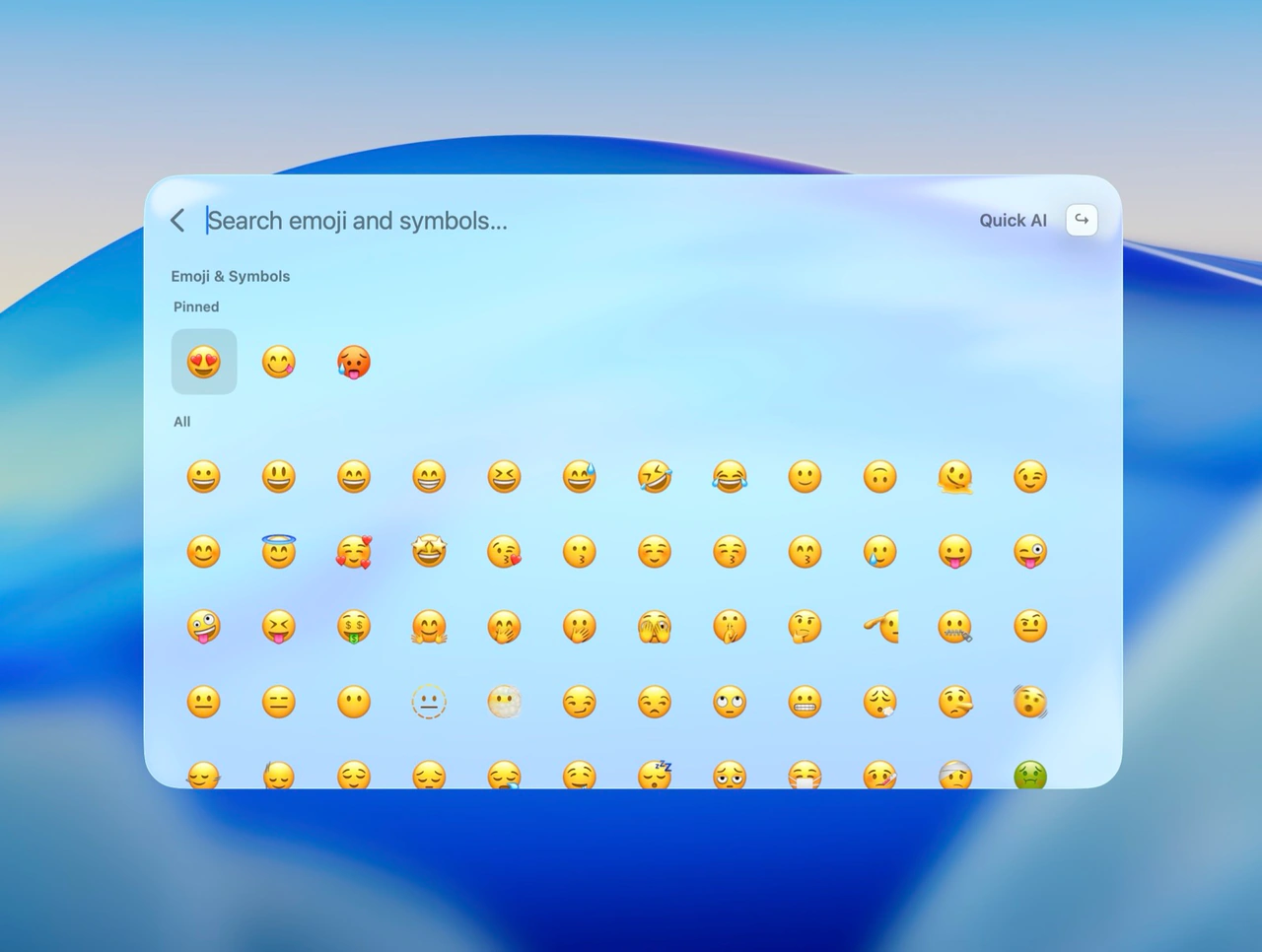
Emoji search now has its own native picker with pinned favorites, learned phrases, custom hints, and Quick AI suggestions.

Supermac emoji picker showing pinned emoji, emoji search, and Quick AI.
  • Pinned emoji stay at the top for the faces and symbols you reach for constantly.
  • Emoji choices are remembered per phrase so repeated searches get smarter over time.
  • Custom hints let you teach Supermac phrases like chef kiss or dramatic exit.
  • Quick AI can suggest emoji when local emoji and symbol search does not have a good match.
  • Emoji Search is available as a root launcher command and fallback search target.

Browser bookmarks

Supermac can search bookmarks from the browsers you actually use.

  • Chrome, Arc, Brave, Edge, Chromium, Safari, and Firefox bookmarks show up in root search.
  • Browser search can be turned on or off from settings.
  • Indexed bookmarks can be refreshed and previewed without leaving Supermac.

Today reminders widget

Today reminders became a proper launcher widget instead of another place to go check.

  • Today reminders appear directly in the launcher.
  • Reminder completion animates in place.
  • Permission routing helps you fix missing Reminders access without hunting through macOS settings.

App and file actions

Search results picked up the actions people reach for after finding something.

  • Apps can be uninstalled, hidden, copied, opened in Finder, or pinned as favorites.
  • Files can be previewed, copied, and opened in Finder.
  • Favorite pinning makes frequently used items easier to reach again.

Cleaner action menu

The Command-K action panel became easier to scan and faster to drive from the keyboard.

  • Actions are searchable from the panel.
  • Keyboard-focused navigation is tighter.
  • The action surface got cleaner glass styling and less visual clutter.

Smarter search ranking

Supermac got better at putting the right result near the top.

  • Usage tracking helps frequently opened items rise naturally.
  • Duplicate apps are filtered out of results.
  • Noisy Apple service apps are kept out of the way.

File search

Files got their own search lane, with less noise while typing.

  • File results appear in their own search section.
  • File search waits until three characters so short queries stay fast and focused.
  • Ignore patterns can be edited from settings.

Camera preview

Supermac added a native camera preview command.

  • Open Camera launches a live preview directly from the launcher.
  • Camera permission handling is built into the flow.
  • The preview stays inside the native Supermac surface.

Permission settings

The permissions view became clearer for the macOS access Supermac needs.

  • Calendar, Reminders, Contacts, and Accessibility permissions are easier to inspect.
  • Permission states are surfaced in settings.
  • Supermac points you toward the right macOS settings when access is missing.

System actions

Root-search system commands landed for macOS control without leaving the launcher.

  • Added lock, sleep, restart, shutdown, logout, screen saver, media, volume, appearance, trash, disk, hidden file, app visibility, app quitting, notification, and Bluetooth commands.
  • Added Set Volume with a native prompt.
  • Added Quit All settings for confirmation and apps that should never be closed.
  • System actions show up immediately in search.

Native launcher

The first usable Supermac launcher made app launching fast and keyboard-first.

  • Command-Shift-Space opens the launcher.
  • Apps can be searched and launched from the native search surface.
  • The orange Supermac app icon landed with the first build.

Root search

Supermac started with one search box for the useful stuff on your Mac.

  • Search covered files, Apple Shortcuts, Reminders, and emoji.
  • Results were available directly from the launcher.
  • Settings for app paths and file search were available from the start.

Command-K actions

Supermac added an action menu for working with the selected result.

  • Command-K opens actions for the current result.
  • Keyboard and shortcut settings were included in the first build.
  • Permissions settings shipped alongside the launcher basics.
Supermac

A native launcher for people who want full privacy — no cloud, no login, no data collection.

Connect

© 2026 Kitze. All rights reserved.

built by the goat